
Every environment has four core terrain types: Grass, Sand, Soil and Rock. You choose Planet Zoo 2 biomes and continents when creating a zoo, then open Terrain and Nature Brush to paint the ground and place foliage. Match both to your animals' requirements rather than copying one planting recipe across the whole biome.
Which Planet Zoo 2 biomes and maps can you choose?
When you create a zoo, Select Biome offers six biomes, including Tundra, Grassland, Temperate, Desert and Tropical.
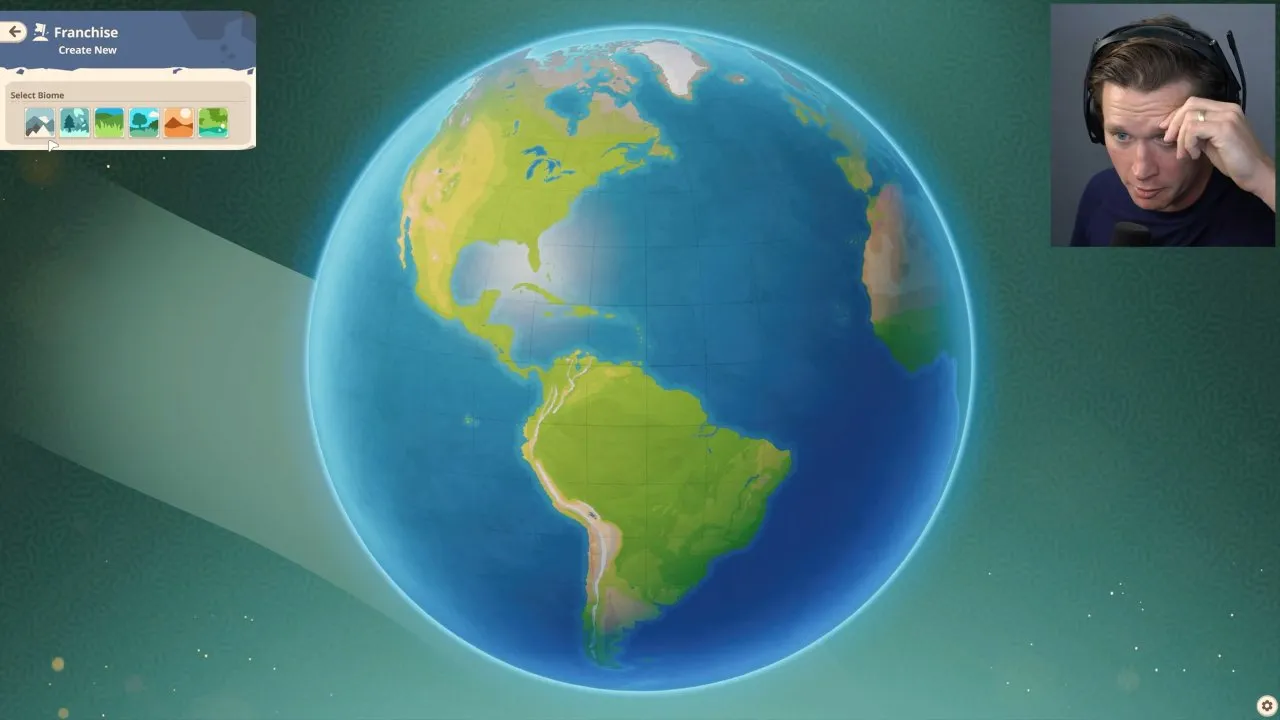
For a Franchise zoo, enter Franchise with your Frontier account, select Start New Franchise +, confirm your franchise details, then choose the zoo's biome and continent and give it a name. Compare the location before committing.
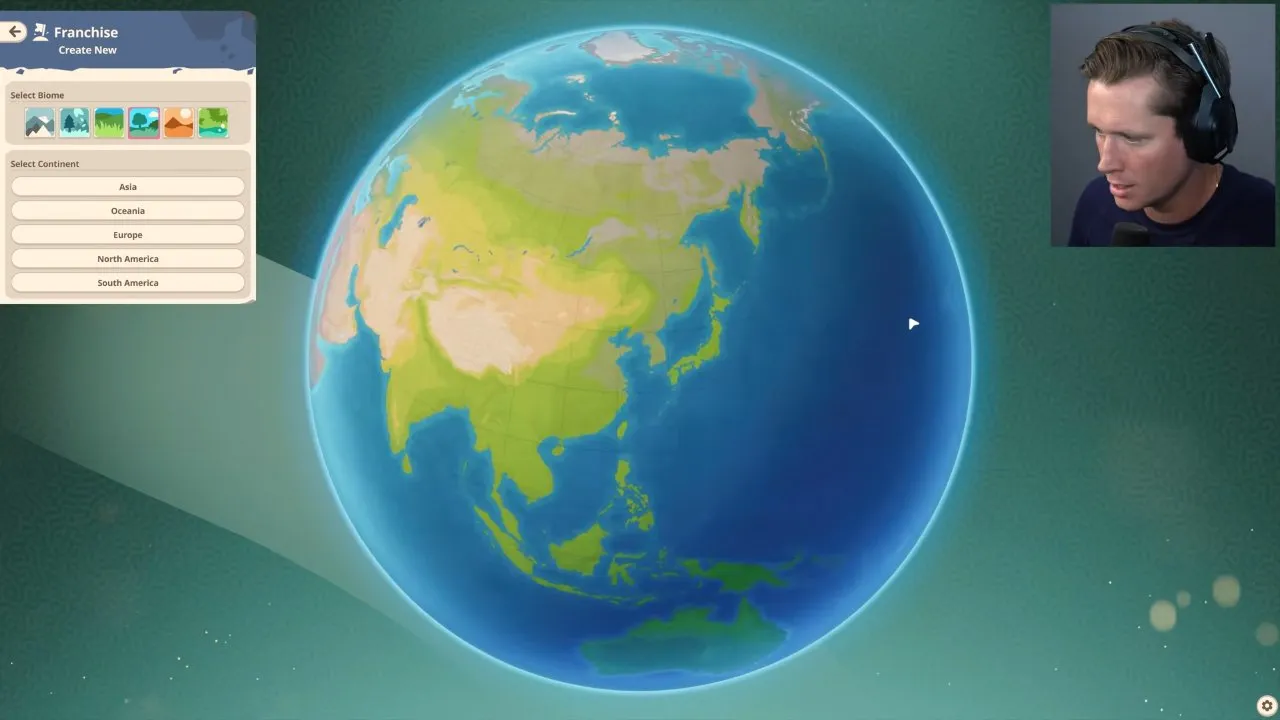
Sandbox also lets you select a biome and continent, plus Flat or Sculpted terrain. Choose Default, Creative or Challenge, or adjust Economy and Animal Welfare through Sandbox Settings, then select Create Zoo. For the broader mode choice, see Planet Zoo 2 franchise mode.
Flat terrain: recommended for a blank starting layout
Choose Flat when you want to lay out your own terrain shapes from a flat starting point. This is the simpler choice if your immediate goal is to practise painting and planting before sculpting a landscape.
Sculpted terrain: start with landforms
Choose Sculpted when you want shaped terrain as your starting point. You can still use sculpting tools to change slopes and depressions, so plan around the landforms you want to keep.
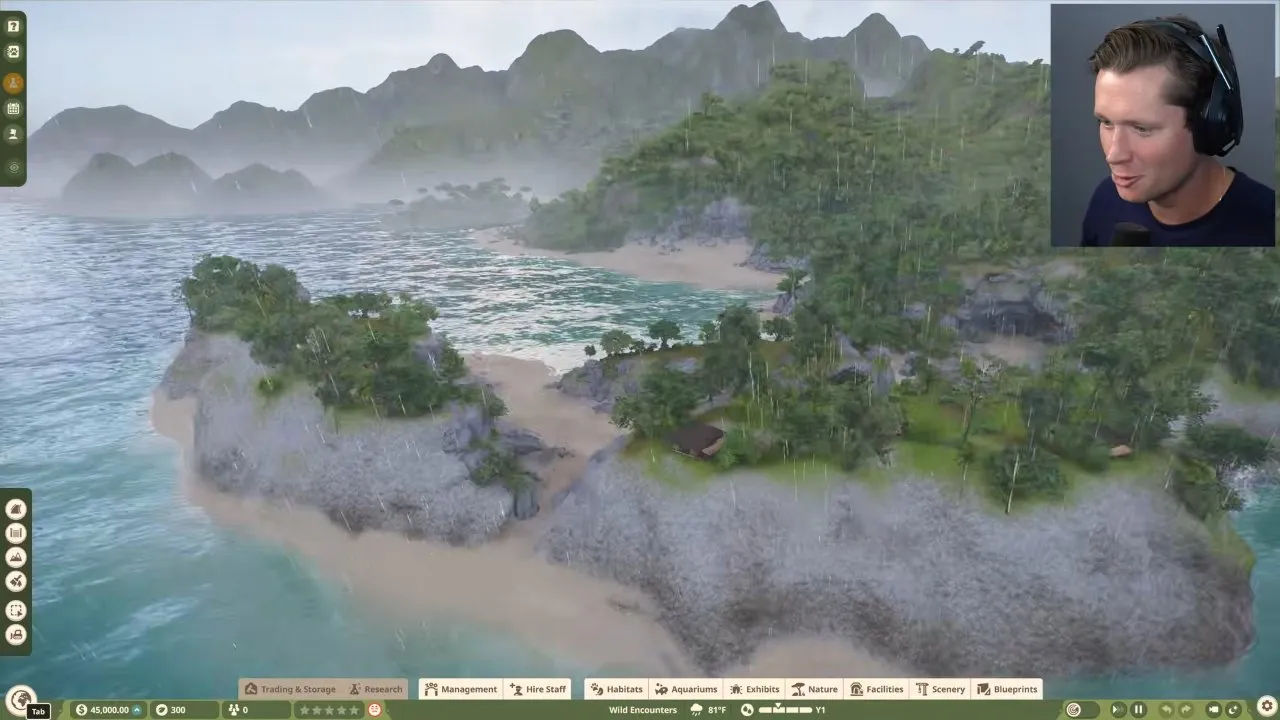
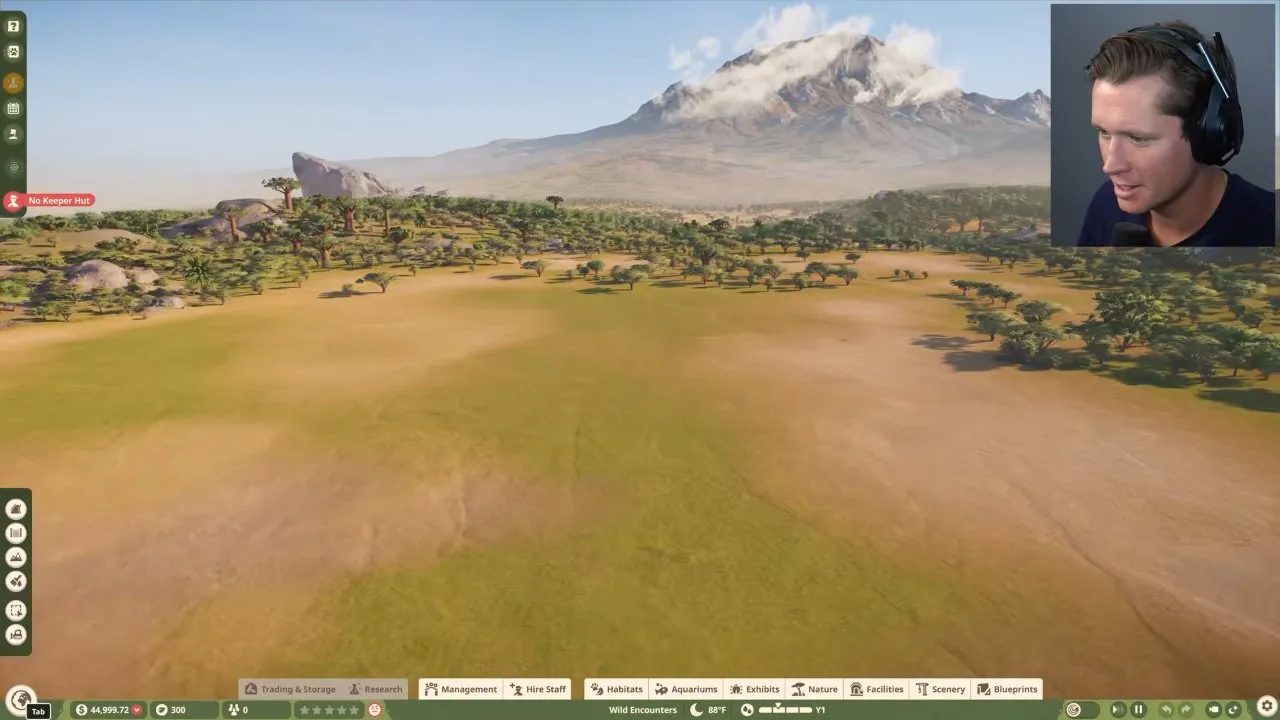
The two landscapes shown in the video give you a useful comparison, without proving that every map in those biomes looks alike.
Tropical landscape: build around the shoreline and slopes
Tropical Asia gives you a shoreline, wooded slopes and rocky ground, and players find the land tricky to build on. If that is the landscape you want, plan your layout around those features rather than expecting a broad flat site.
Grassland landscape: recommended for the flatter scene shown
This Grassland map has a relatively flat, open foreground with a large mountain in the distance, which is why players like it for a first build. Other Grassland maps can look different.
How do you use the Planet Zoo 2 terrain painter in each biome?
Open Terrain, choose the Paint Tool, then select Grass, Soil, Sand, Rock, Snow or Waterlogged and adjust Intensity, Size and Sharpness. Grass, Sand, Soil and Rock are the four core types in every environment; Snow and Waterlogged paint over the surface.
- Build your base habitat and select it.
- Open Animals → Pin Species, choose the species, select + Add to Selection, then Confirm Selection. You can now view their collective requirements before introducing them.
- Shape the ground if needed, then paint the terrain mix those animals require. Some animals also need specific terrain such as Long Grass or Wetland Sediment.
- Check Temperature, Plants and water-body Salinity alongside Terrain. A good-looking ground texture alone does not meet all habitat needs.
Let the selected species' requirements determine your habitat. Start with Planet Zoo 2 animals if you still need to choose its occupants.
Adaptive painting: let the terrain influence the blend
Choose adaptive mode when you want painting to respond to the landscape. Dynamic terrain paints adapt to terrain angle and elevation, and you can edit terrain while using the painting modes.
Last selected blend: continue with your selected blend
Choose last selected blend when you want to keep working with the blend you selected. It is another painting mode available while editing terrain.
Last selected paint: continue with your selected paint
Choose last selected paint when you want to continue with that paint selection as you edit.
| Surface brush | What changes | What to watch |
|---|---|---|
| Snow | Adds surface snow over the underlying terrain | It sticks only when the ground is cold enough; a Cooler can help in a hot biome |
| Waterlogged | Adds surface-level water over terrain | Check the animals' terrain requirements rather than treating it as a universal habitat fix |
A Heater in a cold biome melts nearby snow. As weather warms, accumulated snow gives way to the underlying terrain type. If snow will not stay, check temperature before repainting the same patch.
How does the Planet Zoo 2 foliage paintbrush tool work?
Open Nature Brush to paint a single plant or a mixture of plants and rocks, using a preset or a custom brush containing up to 20 nature objects. You can save custom brushes to the Nature Brush screen, adjust intensity and configure how the brush interacts with paths.
Preset brush: recommended for getting started
Select a preconfigured brush when you want to place foliage without first assembling a mixture. Check the plants against your pinned species' requirements before covering a habitat.
Custom brush: save the mixture you want to repeat
Add your chosen nature objects, up to 20 in one brush, then save it for reuse. This gives you a repeatable plant-and-rock mixture instead of placing every item individually. A biome's appearance is a useful design cue, but your animals still need suitable Plants and Temperature.
For landforms beneath that foliage, Sculpt can push, pull, sharpen and smooth, with Intensity and Size controls. Surface Lock makes edits relative to the surface you first select, and you can dig caves or tunnels. Stamp offers Primitive Shapes and Landscape Stamps, with Advanced Move for orientation.
What does a Planet Zoo 2 ecosystem biome filter mean?
An ecosystem biome filter helps you narrow animal choices by environment; it is separate from the biome buttons used to create a zoo. For example, pick Grassland in the trading filters to list animals that thrive there.
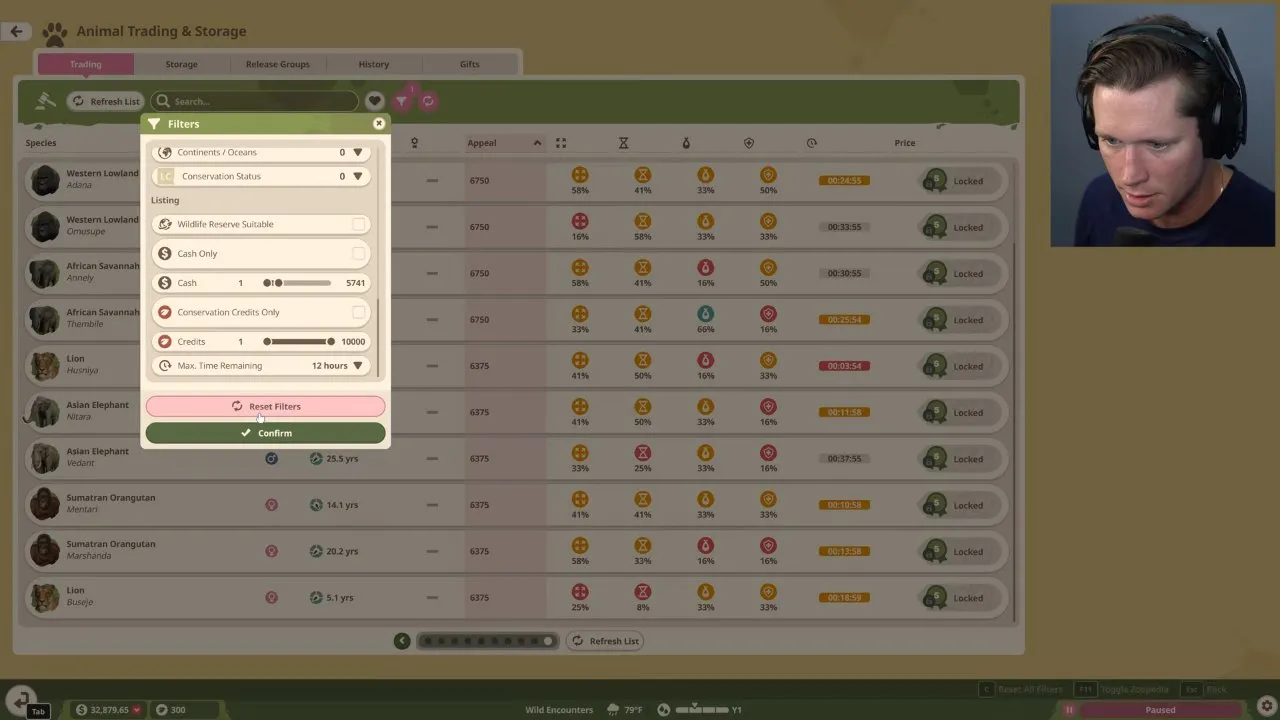
The continent filter is a separate setting, so check you have the biome filter selected.
The animal Biome filter contains Desert, Estuarine, Grassland, Lakes and Rivers, Mangrove, Open Sea, Reef, Taiga, Temperate, Tropical, Tundra and Wetlands. All is the unfiltered option. At a glance, these labels might look like a map catalogue; they describe animal preferences and do not prove that each is a selectable zoo map.
When creating a Sandbox Wildlife Reserve, you select a reserve, name it and choose whether its Ecosystems are already established. That is a different decision from picking a zoo's biome and continent.
You now have a route from choosing a landscape to painting terrain and planting for your selected animals. Once your habitat meets their collective requirements, take the next step with Planet Zoo 2 wildlife reserve planning.